
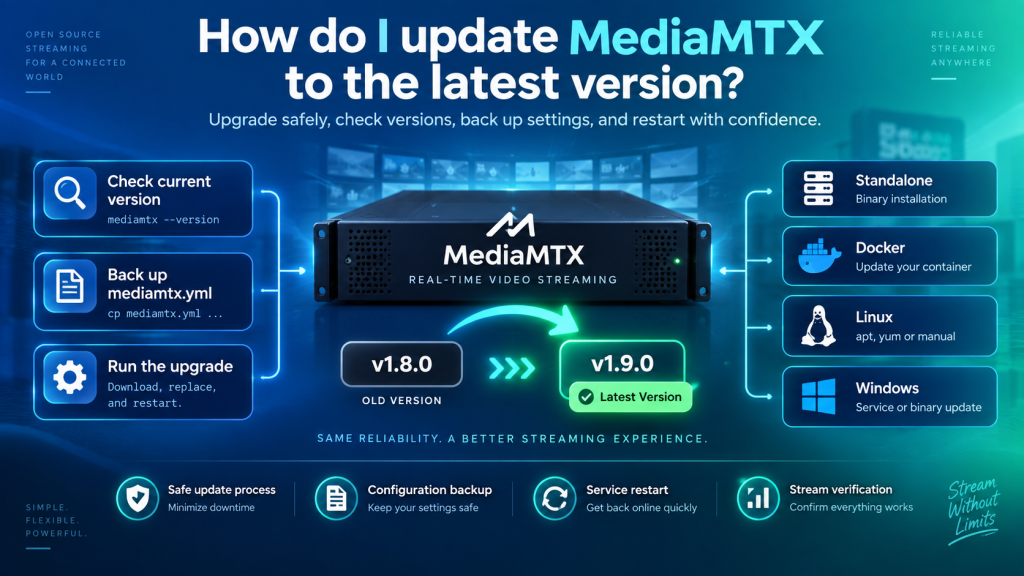
MediaMTX is a useful keyword for users who want to keep their MediaMTX installation current, secure, and compatible with newer streaming features. Because MediaMTX is actively developed, updates may include bug fixes, performance improvements, dependency changes, protocol enhancements, and additional configuration options.
The correct update process depends mainly on how MediaMTX was originally installed. Standalone binaries, Docker containers, Arch Linux packages, FreeBSD installations, and OpenWrt devices can require different procedures, so identifying your current setup is the best place to begin.
MediaMTX Update Methods at a Glance
Before making any changes, determine which installation method your server currently uses. Updating through the same method used for installation usually keeps the environment cleaner and reduces the risk of configuration problems.
| Installation Type | Typical Update Method |
|---|---|
| Standalone Binary | Built-in upgrade command |
| Linux Service | Upgrade binary and restart service |
| Windows Service | Upgrade executable and restart service |
| Docker | Pull updated image and recreate container |
| Arch Linux | Update through package workflow |
| FreeBSD | Use package or ports system |
| OpenWrt | Upgrade binary or rebuild from source |
Regardless of the platform, backing up important configuration files before updating is a good practice.
Check Your Current MediaMTX Version
The first step is identifying the MediaMTX version currently running on your system. This helps you compare your installation with newer releases and understand whether an update is necessary.
Check for a New Version
Supported MediaMTX releases can use the version-checking command:
./mediamtx --check-version
Windows users can run the equivalent command through mediamtx.exe.
This check is useful because it can tell you whether a newer MediaMTX version is available without immediately modifying the installed executable.
Record the Current Version
For production systems, write down the currently installed version before upgrading. Keeping this information makes troubleshooting easier and gives you a clear reference if you later need to restore the previous release.
As of September 2026, MediaMTX v1.21.0 is the version referenced in this update workflow, although newer releases may become available over time.
Back Up MediaMTX Before Updating
Even a straightforward software update should begin with a backup, especially when MediaMTX is running important cameras, broadcasts, or production streams.
Protect the mediamtx.yml File
The most important file to back up is usually:
mediamtx.yml
This configuration file may contain stream paths, authentication rules, recording settings, remote sources, network options, protocol configuration, and other custom values.
Copy the file to a safe location before starting the update so that your previous configuration can be restored easily if necessary.
Back Up Related Files
Depending on your deployment, you may also need to protect:
- TLS certificates
- Custom scripts
- Docker Compose files
- Environment variable definitions
- Service configuration files
- Authentication-related files
- Recording settings
- Automation scripts
Recordings themselves do not always need to be copied before every software update, but important stored footage should already be covered by a sensible backup strategy.
Update a Standalone MediaMTX Installation
Standalone MediaMTX installations are generally the easiest to update because supported versions include a built-in upgrade option.
Run the Upgrade Command
On Linux or macOS, the update command can be run as:
./mediamtx --upgrade
The upgrade process checks for the appropriate newer release and replaces the existing MediaMTX executable.
Windows users can use the same upgrade functionality through the Windows executable.
Check File Permissions
The user account running the upgrade must have permission to modify the location containing the MediaMTX binary. If the executable is stored inside a protected system directory, insufficient permissions may prevent the update from completing.
After the upgrade, restart MediaMTX if necessary and confirm from its startup output that the expected version is now running.
Updating MediaMTX Running as a Service
Production installations often run MediaMTX as a background service so that it starts automatically when the server boots.
Linux With systemd
For a Linux installation managed through systemd, a controlled update normally involves stopping the service, updating the MediaMTX executable, and then starting the service again.
After restarting it, check the service status and MediaMTX logs to confirm that the application loaded correctly.
Windows Services
The same general approach applies when MediaMTX runs as a Windows service. Stop the service before replacing or upgrading the executable, then restart it after the update is complete.
A controlled service restart is safer than replacing files while the application is actively handling streams.
Plan for Temporary Stream Interruptions
Restarting MediaMTX can temporarily disconnect active publishers and viewers. This may affect RTSP cameras, OBS streams, WebRTC clients, HLS viewers, or other connected applications.
For production environments, schedule upgrades during lower-traffic periods whenever possible. Informing users or operators about planned maintenance can also reduce confusion if streams become briefly unavailable.
Critical environments may benefit from redundant MediaMTX instances or a more advanced high-availability design, but that level of infrastructure is not necessary for every deployment.
Refresh a Docker-Based MediaMTX Deployment
Docker installations follow a different update model because the MediaMTX application exists inside a container image rather than as a directly managed host executable.
Pull the Updated Image
The typical workflow is to obtain the newer MediaMTX image and recreate the container. Your original networking, configuration, volumes, and environment variables should be preserved when creating the replacement container.
If Docker Compose is being used, keeping the deployment settings inside a Compose file makes future upgrades much easier.
Use Version Tags Carefully
MediaMTX Docker deployments can follow a compatible release series or be pinned to an exact version.
| Tagging Approach | Advantage |
|---|---|
| Moving major-version tag | Easier access to newer compatible releases |
| Exact version tag | Predictable and controlled deployments |
Production systems often benefit from fixed version tags because administrators can choose exactly when a new release enters the environment.
Updating Arch Linux and FreeBSD
Package-managed installations should generally continue using their native package workflows rather than switching suddenly to manually maintained binaries.
Arch Linux
Arch Linux users can update MediaMTX through the same package process used during installation. This keeps the application integrated with the system’s normal package-management approach.
Package-based management can simplify updates because files remain organized according to the operating system’s conventions.
FreeBSD
FreeBSD users can update MediaMTX through the available package or ports system, depending on how the application was originally installed.
Using the native package workflow also makes future maintenance easier and avoids having several independently managed copies of the same software.
Updating MediaMTX on OpenWrt
OpenWrt devices require extra care because routers and embedded systems often have limited storage, memory, and processing power.
Supported Architectures
Devices based on architectures such as AMD64, ARMv6, ARMv7, or ARM64 may be able to use an appropriate standalone MediaMTX binary.
Other hardware architectures may require the software to be compiled specifically for the target device.
Keep a Recovery Copy
Before updating an embedded device, keep a copy of the working MediaMTX binary and mediamtx.yml. If the new version fails because of resource limitations or compatibility problems, you can restore the previous setup more easily.
Check available storage before downloading or replacing binaries on devices with limited flash memory.
Review Release Changes Before Upgrading
Installing every update immediately is not always the best approach for production systems. First review what has changed and determine whether the release affects features your environment depends on.
A newer release may introduce changes involving protocols, APIs, configuration validation, dependencies, networking behavior, or other server functionality.
Test Important Integrations
Extra testing is especially valuable if your MediaMTX installation depends on:
- External authentication
- Control API integrations
- Webhooks
- Custom scripts
- Recording workflows
- Multiple camera sources
- Complex path rules
- Automated deployment systems
Testing these components before a full production rollout reduces the risk of discovering compatibility problems after users are already affected.
Test Your Streams After Updating
A successful executable update does not automatically prove that every streaming workflow still works correctly. Always perform a short post-update test.
Verify Your Main Protocols
Check the protocols actually used in your environment. For example, confirm that RTSP cameras reconnect, RTMP publishers can start streaming, HLS playback works, and WebRTC sessions establish correctly.
If you use SRT, Media-over-QUIC, or other specialized technologies, include those in the testing process as well.
Check Security and Recording
Authentication should also be tested after the update. Confirm that authorized users can access streams while unauthorized users remain blocked.
If recording is enabled, verify that new recording files are being created correctly and that expected playback or retention behavior remains unchanged.
Monitor Logs After the Upgrade
MediaMTX logs are particularly valuable immediately after an update because some problems only become visible when publishers or viewers begin reconnecting.
Look for repeated connection failures, authentication errors, unavailable sources, invalid configuration messages, or unexpected protocol warnings.
Monitoring the server closely after the upgrade makes it easier to identify a new problem before it turns into a larger outage.
Build a Safer MediaMTX Update Routine
For important installations, updating should follow a repeatable process instead of being handled differently every time.
A practical workflow is:
- Check the current version.
- Review the new release changes.
- Back up
mediamtx.ymland related files. - Schedule a suitable maintenance period.
- Update using the correct platform method.
- Restart MediaMTX if required.
- Check logs for errors.
- Test publishing and playback.
- Verify authentication and recording.
- Keep the previous version available temporarily if rollback is needed.
Following a consistent process can make future updates faster and less stressful.
Conclusion
MediaMTX updates are relatively straightforward when you use the method appropriate to your installation. Standalone versions can use the built-in upgrade feature, while Docker, Arch Linux, FreeBSD, OpenWrt, and service-based deployments should follow their own platform-specific update workflows. Backing up mediamtx.yml and related configuration files before making changes remains an important precaution.
A reliable update process involves more than simply installing a newer executable. Check versions, review release changes, protect your configuration, plan service restarts carefully, and test streams afterward. With a controlled update routine, MediaMTX can stay current while maintaining the stability of your live streaming environment.