
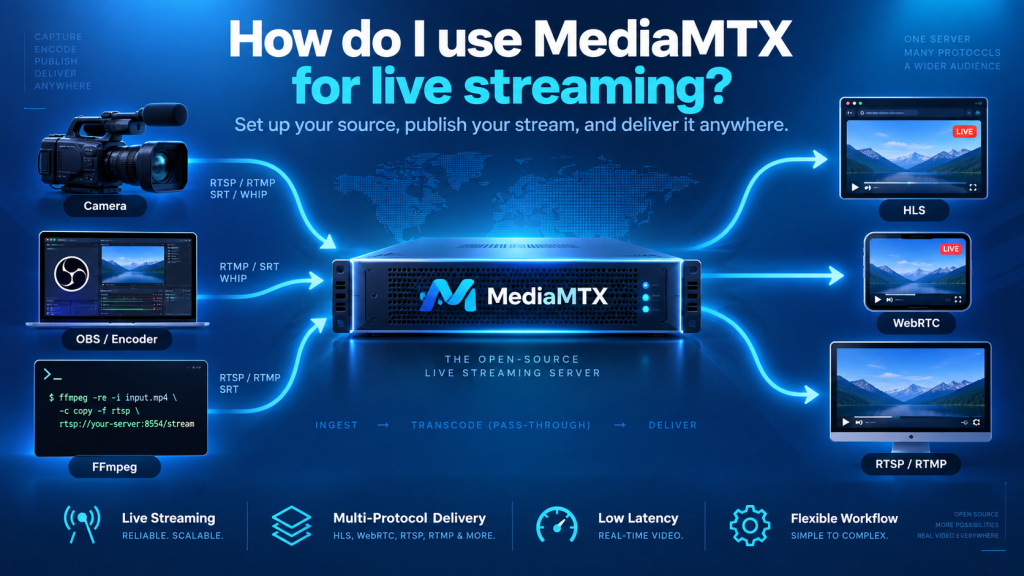
MediaMTX is a useful keyword for anyone learning how to use MediaMTX for live streaming. MediaMTX is an open-source media server and media proxy that can receive, route, distribute, record, and play real-time video and audio through several popular streaming protocols.
Using MediaMTX for live streaming usually involves starting the server, choosing a publishing method, creating a stream path, and connecting viewers. Whether you are broadcasting with OBS Studio, streaming an IP camera, or building a browser-based video application, MediaMTX provides a flexible way to manage live media from one central server.
How MediaMTX Live Streaming Works
A basic MediaMTX streaming setup normally has three parts: a publisher, the MediaMTX server, and one or more viewers. The publisher creates or supplies the live media, while MediaMTX receives the stream and makes it available to compatible clients.
The publisher could be OBS Studio, FFmpeg, GStreamer, an IP camera, a webcam, or another supported source. MediaMTX assigns the incoming stream to a path, such as mystream, which viewers can then access through an appropriate protocol.
Basic Streaming Flow
The workflow can be understood like this:
| Stage | Purpose | Example |
|---|---|---|
| Publisher | Sends live video or audio | OBS, FFmpeg, IP camera |
| MediaMTX | Receives and routes the stream | Media server |
| Stream Path | Identifies the live feed | mystream |
| Viewer | Watches the stream | Browser, VLC, mobile app |
This structure allows one publisher to serve different types of viewers without requiring a completely separate media server for every streaming method.
Install and Start MediaMTX
Before you can start a live stream, MediaMTX must be installed and running on your computer or server. Standalone versions can be used on common operating systems, while Docker is useful for container-based deployments.
For beginners, the standalone executable is usually the easiest way to start. Once MediaMTX launches successfully, the console displays information about the services and network addresses currently available.
Start With Default Settings
The default configuration is often enough for initial testing. This means you can first confirm that publishing and playback work before changing advanced settings.
When you need additional control, the mediamtx.yml file can be used to configure stream paths, authentication, recording, protocols, networking, and other server options.
Choose the Right Publishing Protocol
The next step is deciding how your live video will reach MediaMTX. Different publishers and applications work better with different streaming technologies.
MediaMTX supports publishing through protocols such as RTSP, RTMP, WebRTC, SRT, RTP, MPEG-TS, and Media-over-QUIC. It can also pull compatible streams from remote cameras or media servers.
Which Protocol Should You Use?
| Requirement | Suggested Protocol |
|---|---|
| OBS live broadcasting | RTMP |
| IP camera streaming | RTSP |
| Browser-based publishing | WebRTC |
| Reliable remote contribution | SRT |
| Specialized media workflows | RTP / MPEG-TS |
| Modern experimental delivery | Media-over-QUIC |
Choose a publishing method based on the capabilities of your source and the needs of your viewers.
Stream From OBS Studio
OBS Studio is one of the most popular options for sending a live broadcast to MediaMTX. RTMP is commonly used because OBS provides straightforward support for custom RTMP servers.
Configure OBS for MediaMTX
Open the streaming settings in OBS and select a custom streaming service. For MediaMTX running on the same computer, a server address may follow this structure:
rtmp://localhost/mystream
In this example, mystream becomes the path used by MediaMTX. Once the settings are saved, click Start Streaming in OBS to begin publishing.
MediaMTX receives the stream and makes it available to compatible viewers. The same live feed may also be delivered through another supported protocol if the codecs and configuration allow it.
Publish Live Video With FFmpeg
FFmpeg provides more control than many graphical streaming tools, making it useful for developers and advanced users. It can capture webcams, video files, capture cards, network streams, and other media sources.
FFmpeg can then publish the resulting video to MediaMTX using a supported protocol such as RTSP or RTMP.
Why FFmpeg Is Useful
FFmpeg allows detailed control over bitrate, resolution, frame rate, codecs, audio settings, and video processing. This makes it valuable when a stream needs to be resized, re-encoded, filtered, or prepared before it reaches MediaMTX.
Where possible, use media formats that are compatible with both the publishing and viewing protocols. Avoiding unnecessary transcoding can reduce CPU usage and help preserve video quality.
Connect IP Cameras to MediaMTX
MediaMTX is particularly useful for IP camera streaming because many security and monitoring cameras provide RTSP output.
Instead of forcing each viewer to connect directly to a camera, MediaMTX can pull the camera feed and expose it through a clearly named stream path.
Centralize Multiple Cameras
A camera system might use paths such as:
front_gateoffice_camerawarehouseparking_area
This approach creates a central streaming layer and makes larger camera environments easier to organize.
MediaMTX can also help deliver a camera stream through browser-friendly technologies when the source codec is compatible, reducing the need for every camera to support multiple protocols.
Let Viewers Watch the Stream
Once media reaches MediaMTX, viewers can access it through supported reading protocols. The best choice depends on the type of device, application, and latency requirements.
HLS for Convenient Browser Playback
HLS is useful when compatibility and easy web delivery are more important than extremely low latency. It works well with browsers, mobile devices, media players, and HTTP-based delivery infrastructure.
MediaMTX can also provide Low-Latency HLS for workflows that need less delay than traditional HLS.
WebRTC for Low-Latency Viewing
WebRTC is a strong choice when viewers need near-real-time playback. It is especially useful for interactive applications, monitoring dashboards, and situations where several seconds of delay would create problems.
RTSP for Technical Clients
RTSP is commonly used with VLC, FFmpeg, GStreamer, surveillance platforms, and other technical applications. It is particularly practical on local networks and in camera-based environments.
Use One Stream Across Multiple Protocols
One of the biggest advantages of MediaMTX is that publishers and viewers do not always need to use the same streaming protocol.
For example, OBS may publish a stream through RTMP while browser viewers access the same live media through HLS or WebRTC. An RTSP camera can also feed MediaMTX while another application consumes the video through a different supported delivery method.
Why Multi-Protocol Streaming Matters
This flexibility can reduce infrastructure complexity because one MediaMTX server can act as the central routing layer between sources and clients.
Instead of operating separate media servers for cameras, browsers, and broadcast tools, you can manage several workflows through one platform when the underlying codecs are compatible.
Secure Your Live Streaming Server
A server used only for local testing can be relatively simple, but a MediaMTX instance exposed to the internet should be configured more carefully.
Authentication and permissions can help control who is allowed to publish streams and who is allowed to watch them.
Protect Important Streams
For public or production environments, review:
- User authentication
- Stream permissions
- Firewall rules
- Exposed ports
- TLS or encrypted protocols
- Administrative access
- Private camera credentials
Only expose the services your project actually needs. Limiting unnecessary access reduces the risk of unauthorized publishing or viewing.
Improve Streaming Performance
Stable streaming depends on more than MediaMTX alone. Network bandwidth, resolution, frame rate, bitrate, codecs, transport method, and viewer count can all influence performance.
A stream encoded at a very high bitrate may work perfectly on a local network but buffer when sent across a slower internet connection.
Match Settings to Your Network
Choose video settings that match the available upload capacity. If bandwidth is limited, lowering the bitrate or resolution may create a more stable experience than trying to deliver maximum quality.
Protocol choice also matters. WebRTC may be better for low-latency monitoring, while HLS may be more practical for larger audiences where a small amount of delay is acceptable.
Use Logs for Troubleshooting
MediaMTX logs can reveal publishing failures, disconnected viewers, missing sources, authentication problems, and protocol errors.
When a stream does not behave correctly, change one setting at a time and test again. This makes it easier to identify the actual cause of the problem.
Record Your Live Streams
MediaMTX can also record incoming streams to disk, making it useful for broadcasts, surveillance systems, training sessions, and other workflows that require an archive.
Recording can be enabled for selected paths rather than every stream handled by the server.
Plan Storage Carefully
Long-running high-resolution streams can consume large amounts of disk space. Before enabling continuous recording, estimate storage requirements based on bitrate, recording duration, and the number of active streams.
A clear retention policy and regular storage monitoring can prevent old recordings from filling the server unexpectedly.
Recommended Setup by Live Streaming Use Case
Different projects benefit from different MediaMTX configurations.
| Use Case | Recommended Approach |
|---|---|
| OBS broadcasting | RTMP ingest with HLS/WebRTC delivery |
| IP camera monitoring | RTSP source with RTSP/WebRTC viewing |
| Browser streaming | WebRTC or HLS |
| Remote contribution | SRT |
| Local technical testing | RTSP or RTMP |
| Multi-camera monitoring | Separate named paths |
| Broadcast archiving | Enable path-based recording |
Starting with the simplest configuration that meets your requirements usually produces the easiest system to maintain.
Conclusion
MediaMTX makes live streaming easier by providing one server that can receive, route, distribute, and record real-time media. The basic workflow is simple: start MediaMTX, publish a stream to a path, and allow viewers to connect through a suitable protocol such as RTSP, RTMP, HLS, WebRTC, or SRT.
Its real strength appears when a project needs flexibility. OBS, FFmpeg, IP cameras, browsers, and other clients can all become part of the same streaming environment. With proper protocol selection, authentication, networking, performance tuning, and testing, MediaMTX can provide a reliable foundation for live broadcasting, camera monitoring, web streaming, and professional real-time video workflows.