
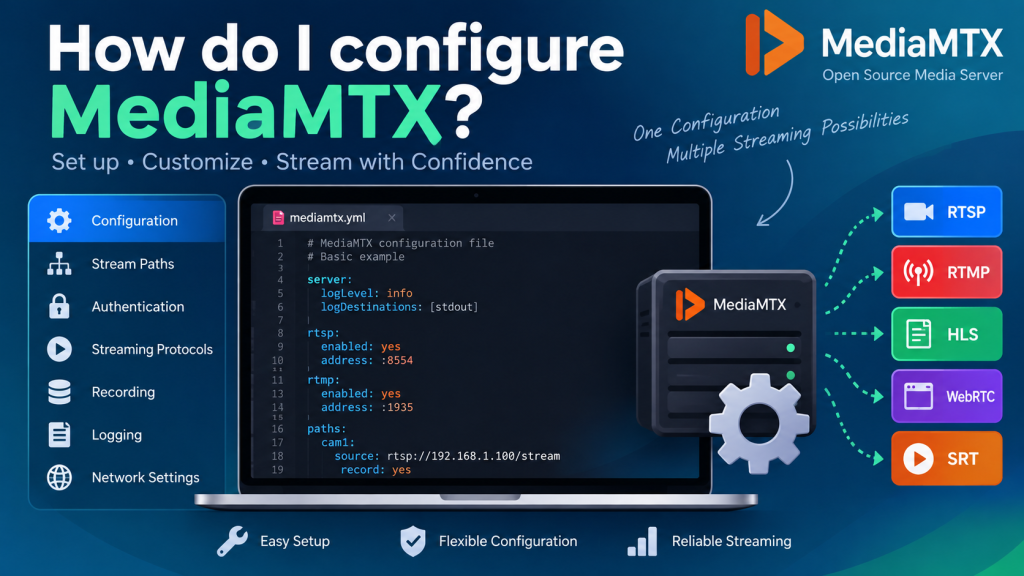
MediaMTX is a useful keyword for users who want to understand how to configure MediaMTX for smooth live video and audio streaming. MediaMTX provides a flexible configuration system that lets beginners and experienced administrators manage protocols, stream paths, authentication, recording, logging, networking, and other server settings.
The main configuration file is called mediamtx.yml, and it controls both server-wide behavior and individual streams. MediaMTX can also use environment variables and its Control API, making configuration practical for local computers, Docker containers, cloud servers, and production environments.
MediaMTX Configuration at a Glance
A good MediaMTX setup does not require changing every available setting. Most users can begin with the default configuration and gradually customize only the features needed for their particular streaming workflow.
| Configuration Area | Main Purpose |
|---|---|
mediamtx.yml | Controls core server behavior |
| Global Settings | Manage protocols, logging, APIs, and networking |
| Path Settings | Control individual streams |
| Authentication | Restricts publishing and viewing access |
| Recording | Saves selected streams to storage |
| Environment Variables | Overrides settings for Docker and automation |
| Logging | Helps identify server and connection problems |
| Control API | Enables programmatic server management |
Understanding these main areas makes the overall configuration process easier to manage.
Start With the mediamtx.yml File
The simplest way to configure MediaMTX is by editing the mediamtx.yml file included with a standard installation. This YAML file contains the main settings that determine how the MediaMTX server behaves.
Keep a Backup Before Editing
Before making major changes, create a copy of the original configuration file. A backup allows you to restore a working configuration if an incorrect value or formatting mistake prevents MediaMTX from starting normally.
YAML is sensitive to indentation, so spaces and nesting must be handled carefully. Instead of rewriting the entire configuration, change only the parameters required for your project.
Use the Default Settings as a Starting Point
For local testing, the default configuration is often enough to start MediaMTX. Once a basic stream is working, you can gradually add authentication, recording, custom paths, network settings, or other advanced options.
MediaMTX also supports configuration reloading for many settings, allowing certain changes to be applied without completely interrupting active clients.
Understand Global and Path Settings
MediaMTX configuration is generally divided into global settings and path-specific settings. Knowing the difference between these two areas helps prevent unnecessary configuration complexity.
Global Server Settings
Global options apply to the MediaMTX server as a whole. These settings can control logging, authentication methods, protocol listeners, network addresses, APIs, metrics, and other general server behavior.
For example, if you change a global RTSP listener setting, it can affect all RTSP streams handled by the server rather than one individual camera or broadcast.
Path-Specific Settings
Path settings apply to individual streams. A path can determine where media comes from, whether a publisher is allowed, whether recording is enabled, or what actions occur when viewers connect.
The pathDefaults section can define common behavior for multiple streams, while individual entries under paths can override those defaults when necessary.
Create Clear Stream Paths
A path is essentially the name MediaMTX uses to identify a particular stream. Clear path organization becomes especially important when a server handles several cameras, broadcasts, or media sources.
For example, you could use names such as:
entrance_camerawarehouse_camerastudio_liveevent_streamtest_feed
Descriptive names make configuration easier to understand and reduce confusion when troubleshooting or managing multiple streams.
Configure a Basic Path
A simple configuration might look like this:
paths:
  studio_live:
    source: publisher
In this example, studio_live is configured to receive media from a publisher. More advanced paths can pull streams from remote sources such as RTSP cameras or apply additional settings.
Configure Only the Protocols You Need
MediaMTX supports several streaming technologies, including RTSP, RTMP, HLS, WebRTC, SRT, and other supported transports. A production server does not necessarily need every protocol enabled.
Match Protocols to Your Workflow
Different protocols serve different purposes. RTSP is commonly used with IP cameras, RTMP is useful for broadcasting software, HLS works well for browser-friendly delivery, and WebRTC is suitable when low latency is important.
Choose protocols based on your actual publishers and viewers rather than enabling everything by default.
Review Ports and Network Access
Each protocol can use specific listening addresses and network ports. Default settings may be suitable for local testing, while remote or production environments may require custom ports, TLS, certificates, or specific network interfaces.
Firewall rules should allow only the connections your server genuinely requires. Limiting unnecessary exposure can improve overall security.
Set Up Authentication and Permissions
Authentication is important when MediaMTX is reachable outside a private or trusted network. Without appropriate access control, unauthorized users may be able to view or publish streams.
Control Who Can Publish and Watch
MediaMTX permissions can control activities such as publishing, reading, playback, and access to administrative functionality. Different users can be assigned different permissions depending on their role.
For example, a camera or broadcasting application may only need permission to publish, while viewers may only need permission to read a particular stream.
Protect Private Streaming Environments
Use strong credentials for private deployments and avoid leaving sensitive camera feeds publicly accessible. IP restrictions and external authentication methods can also be useful in larger applications with existing user-management systems.
Configure Recording Based on Your Needs
MediaMTX can record selected streams to disk, which is useful for surveillance, event archiving, monitoring, and applications that require historical footage.
Record Only Necessary Streams
Recording can be configured at the path level, which means you do not have to save every stream handled by the server. Selective recording can reduce storage usage and simplify file management.
For example, an important security camera may need continuous recording while a temporary testing stream may not require any saved footage.
Plan Storage and Retention
Video files can consume large amounts of storage, especially at high resolutions and bitrates. Estimate how much data your streams will generate before enabling long-term recording.
Monitor available disk space and use a sensible retention strategy so that old recordings do not eventually fill the server.
Use Environment Variables for Docker and Cloud Setups
MediaMTX settings can also be overridden through environment variables whose names begin with MTX_. This approach is especially useful for Docker, cloud infrastructure, automation platforms, and CI/CD environments.
Why Environment Variables Are Useful
Environment variables allow administrators to reuse the same basic configuration while changing selected values between development, testing, and production systems.
For example, one Docker deployment may require different authentication credentials, stream sources, or network settings from another deployment without maintaining completely separate configuration files.
Handle Sensitive Values Carefully
Credentials and other sensitive values should still be managed securely. Avoid exposing passwords or private configuration data in public scripts, repositories, container definitions, or logs.
Manage Logging for Easier Troubleshooting
Logs are one of the most useful tools when a MediaMTX configuration does not behave as expected. They can reveal connection attempts, unavailable stream sources, authentication failures, protocol issues, and other problems.
During initial configuration, keep logging detailed enough to understand what the server is doing. Once the environment becomes stable, production users can adjust logging according to their monitoring and storage requirements.
When troubleshooting, first reproduce the problem and then review the corresponding log entries. This is usually more effective than changing multiple configuration settings at once.
Validate Your Configuration Before Production
After making significant changes, validate and test the configuration before relying on it in a production environment. MediaMTX provides configuration-validation capabilities that can help identify incorrect values or formatting problems.
Test One Stream First
Instead of configuring many cameras or publishers at once, begin with a single stream. Confirm that publishing, playback, authentication, and networking work correctly before expanding the same configuration to additional paths.
This approach makes troubleshooting much easier because fewer variables are involved.
Verify the Complete Streaming Workflow
A configuration may load correctly while a stream still fails because of networking, codec, firewall, or source problems. Test the full path from publisher to MediaMTX and then from MediaMTX to the viewer.
For remote deployments, also check router settings, NAT behavior, public addresses, certificates, and firewall access where relevant.
Recommended Configuration Priorities
The most important settings depend on whether MediaMTX is being used for testing, cameras, live broadcasts, or a production service.
| Use Case | Configuration Priority |
|---|---|
| Local testing | Basic path and protocol settings |
| IP cameras | RTSP sources, paths, and authentication |
| Live broadcasting | Publisher paths and delivery protocols |
| Browser streaming | HLS or WebRTC configuration |
| Private streams | Authentication and permissions |
| Recording system | Recording paths and storage retention |
| Docker deployment | Environment variables and port mappings |
| Production server | Security, logging, monitoring, and backups |
Starting with the settings that matter most to your use case keeps the configuration clean and easier to maintain.
Conclusion
MediaMTX configuration becomes much easier once you understand the role of mediamtx.yml, global settings and stream paths. Start with the default configuration, organize your paths clearly, enable only the protocols you need, and then add authentication, recording, networking, and logging according to your project requirements.
A reliable MediaMTX setup does not require changing every available parameter. Build the configuration gradually, validate important changes, protect private streams, monitor storage, and test each workflow before production use. This approach creates a cleaner and more dependable streaming environment for both small projects and larger deployments.