
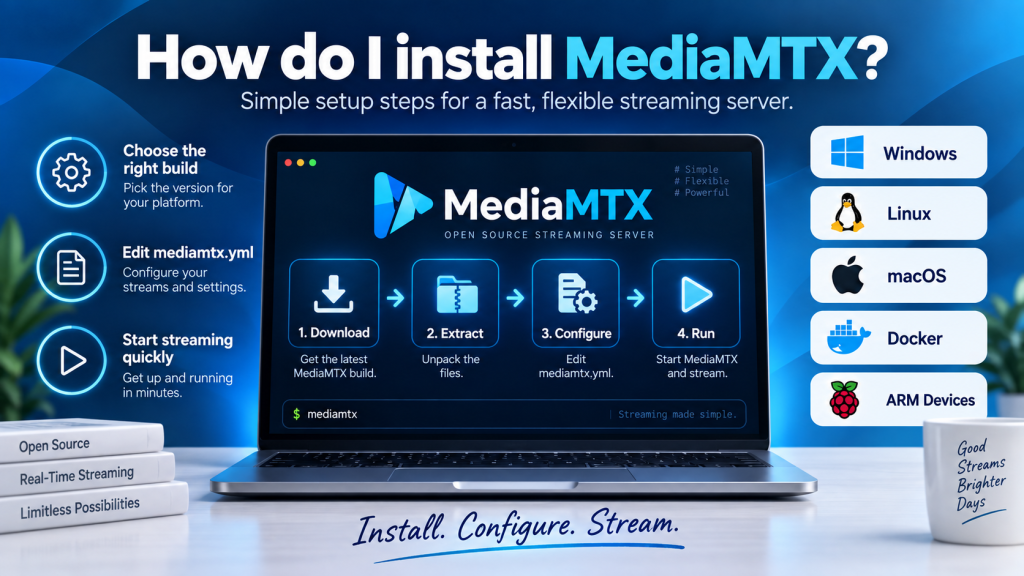
MediaMTX is a useful keyword for users who want to learn how to install MediaMTX and create a reliable live-streaming environment. MediaMTX is an open-source, zero-dependency media server and media proxy designed to handle real-time video and audio through several popular streaming protocols.
MediaMTX can run on Windows, Linux, macOS, Docker, and several other environments. The best installation method depends on your operating system, processor architecture, technical requirements, and deployment type. With the correct package and a basic configuration, you can get a MediaMTX streaming server running without a complicated software stack.
Check Your System Before Installation
Before installing MediaMTX, identify both your operating system and processor architecture. This simple check prevents one of the most common installation problems: downloading a build that is not compatible with the computer or device you are using.
Most modern Windows and Linux computers use 64-bit AMD or Intel processors, commonly identified as AMD64 or x86-64. Newer Macs generally use Apple Silicon, while older models may use Intel processors. Raspberry Pi devices and many embedded systems usually rely on ARM-based architectures.
You should also decide whether you want a standalone installation or a container-based deployment. Standalone binaries are usually easier for beginners and local testing, while Docker is often more suitable for production environments that need repeatable deployment and isolation.
| Environment | Typical Architecture | Recommended Method |
|---|---|---|
| Windows PC | AMD64 / x86-64 | Standalone binary |
| Linux Server | AMD64 / ARM64 | Binary or Docker |
| Intel Mac | AMD64 | macOS standalone build |
| Apple Silicon Mac | ARM64 | ARM64 macOS build |
| Raspberry Pi | ARM | Compatible ARM build |
| Production Server | Varies | Docker or managed binary |
Checking these details before installation can save considerable troubleshooting time later.
Installing MediaMTX on Windows
Installing MediaMTX on Windows is relatively straightforward. Start by obtaining the standalone MediaMTX package that matches your Windows processor architecture. The software is normally distributed inside a compressed archive containing the main executable and configuration files.
Extract the archive into a dedicated folder rather than running MediaMTX directly from inside the compressed file. Once extracted, you should normally see the main executable named mediamtx.exe along with the mediamtx.yml configuration file.
You can launch MediaMTX by double-clicking mediamtx.exe, but running it through Command Prompt or PowerShell is usually more useful. A terminal window allows you to monitor startup messages, active services, connection attempts, warnings, and errors.
If the installation is working correctly, MediaMTX should display status information showing that its enabled streaming services are ready to accept connections.
Setting Up MediaMTX on Linux
Linux users can install MediaMTX through a standalone binary that matches their processor architecture. Download the appropriate archive, extract it into a directory of your choice, and then open a terminal inside that folder.
The server can usually be started with:
./mediamtx
If Linux prevents the file from running, check its executable permissions. MediaMTX is distributed as a standalone application, so a normal binary installation does not require a separate programming-language runtime or interpreter.
For long-term use, you may prefer to move the executable and configuration file into suitable system directories. MediaMTX can also be configured as a systemd service so that it starts automatically whenever the Linux server boots.
This type of setup is particularly useful for cloud servers, surveillance systems, remote monitoring platforms, home labs, and other environments where MediaMTX needs to stay online continuously.
Running MediaMTX on macOS
Installing MediaMTX on macOS follows a process similar to Linux. The most important step is selecting the correct package for your Mac’s processor, because Intel-based Macs and Apple Silicon models require different builds.
After downloading the appropriate archive, extract it and open Terminal inside the MediaMTX directory. You can then launch the server with:
./mediamtx
macOS may show a security warning when you open software downloaded outside the App Store for the first time. Review the warning carefully and allow the application only when you are confident that the MediaMTX package came from a trusted source.
Once MediaMTX starts, monitor the terminal output to confirm that its services have initialized successfully and that no critical configuration or networking errors are reported.
Deploying MediaMTX With Docker
Docker provides another convenient way to install and run MediaMTX, especially for developers, administrators, and businesses that already use container-based infrastructure. Instead of placing the MediaMTX executable directly on the host system, Docker runs it inside an isolated container.
Containerization can make upgrades, migrations, automation, and repeatable deployments easier. The same Docker configuration can often be used across development, testing, and production systems with only a few environment-specific adjustments.
When using Docker, however, networking requires careful attention. You must expose the correct TCP and UDP ports, mount the appropriate configuration files, and configure persistent storage if recordings or other files need to remain available after a container is replaced.
For beginners who simply want to test MediaMTX locally, a standalone binary is normally easier. Docker becomes more useful when the server is part of a larger production infrastructure or automated deployment workflow.
Understanding the mediamtx.yml File
One of the most important files in a MediaMTX installation is mediamtx.yml. This YAML configuration file controls how the server behaves and allows administrators to manage protocols, stream paths, authentication, recording, networking, logging, and other settings.
The default configuration is usually enough for initial testing, which means beginners do not need to change every available option before starting the server. As your requirements grow, the same file can be customized to support more advanced streaming workflows.
For example, you can define individual camera paths, configure user permissions, pull streams from remote sources, enable recordings, adjust protocol-specific behavior, and control how clients connect to the MediaMTX server.
Before making major changes, keep a backup of the original configuration file. YAML is sensitive to formatting and indentation, so a small syntax error can cause unexpected behavior.
Confirming That MediaMTX Works
After installation, launch MediaMTX and examine the console output. A successful startup should show that the server has initialized correctly and that enabled streaming services are listening for incoming connections.
You can then test the installation using compatible applications such as OBS Studio, FFmpeg, GStreamer, VLC, supported IP cameras, or web-based clients. MediaMTX supports multiple streaming technologies, giving users several ways to publish and consume live media.
Commonly used protocols include:
- RTSP for IP cameras and real-time video systems
- RTMP for broadcasting and encoder workflows
- HLS for browser-friendly media delivery
- WebRTC for low-latency streaming
- SRT for reliable transmission over unpredictable networks
- RTP and MPEG-TS for specialized media workflows
Start with a simple local stream before exposing MediaMTX to remote users. Local testing makes it much easier to identify configuration, codec, port, or protocol problems.
Solving Common Installation Problems
If MediaMTX does not start, first confirm that you downloaded the correct package for your operating system and processor architecture. An incompatible binary may fail immediately or produce an operating-system error before the server starts.
Next, check whether another application is already using one of the required network ports. Firewalls, antivirus software, security policies, or insufficient permissions can also prevent MediaMTX from accepting connections even when the executable itself is running.
Docker users should verify port mappings, volume mounts, and container networking. Linux users may need to check executable permissions, while macOS users should review security restrictions if the operating system blocks the application.
If you recently changed mediamtx.yml, review those changes carefully. Incorrect YAML formatting, invalid values, or unsuitable network settings can prevent the server from operating normally.
Preparing MediaMTX for Production Use
Once the basic installation is working, improve the server’s security and reliability before using it for important or public streaming. A test server on a private network can use simple defaults, but production deployments should be configured more carefully.
Enable authentication for private streams and administrative functions, review firewall rules, and expose only the ports and protocols that your workflow actually needs. If recording is enabled, monitor storage capacity and establish a clear retention policy.
Production users should also consider automatic startup, server monitoring, configuration backups, log management, controlled software updates, and recovery procedures. These steps help turn a basic MediaMTX installation into a more dependable streaming environment.
Recommended Installation Method by Use Case
The best installation method depends on what you are trying to accomplish. A beginner testing MediaMTX on a laptop has different requirements from a company operating multiple live streams on a production server.
| Use Case | Recommended Setup |
|---|---|
| First-time testing | Standalone binary |
| Windows desktop streaming | Windows executable |
| Linux production server | Standalone service or Docker |
| macOS development | Native macOS binary |
| Cloud deployment | Docker or Linux binary |
| Raspberry Pi project | ARM-compatible build |
| Automated infrastructure | Docker |
| Always-on server | Service-based installation |
Choosing the right method from the beginning can make future configuration, maintenance, and upgrades much easier.
Conclusion
MediaMTX is relatively simple to install once you know your operating system, processor architecture, and preferred deployment method. Windows, Linux, and macOS users can use standalone binaries, while Docker provides a flexible alternative for production and containerized environments.
After installation, focus on configuring stream paths, networking, authentication, protocols, and security for your specific workflow. With the correct setup and basic testing, MediaMTX can provide a flexible foundation for live broadcasting, IP camera streaming, monitoring, development projects, and other real-time media applications.